Client-side integration guide for JavaScript
This guide is for all participants who want to integrate with UID2 and generate UID2 tokens (advertising tokens) using only JavaScript client-side changes on their website with minimum effort.
This approach is used by the following participant types:
- Publishers: Most notably, this workflow is for publishers wanting to send UID2 tokens into the bidstream.
- Advertisers and Data Providers: In addition, advertisers and data providers would use this for adding a UID2 token to their tracking pixels (see Tokenized sharing in pixels).
This guide does not apply to publishers who want to use a Private Operator, or who want to generate tokens server-side. Those publishers should follow the Client-server integration guide for JavaScript.
UID2 provides an SDK for JavaScript (see SDK for JavaScript reference guide) with the following features:
- UID2 token generation
- Automatic refreshing of UID2 tokens
- Automatic storage of UID2 tokens in the browser
To implement, you'll need to complete the following steps:
- Complete UID2 account setup and configure account
- Add SDK for JavaScript to your site
- Configure the SDK for JavaScript
- Check that the token was successfully generated
SDK for JavaScript version
Support for client-side token generation is available in version 3.4.5 and above of the SDK.
The URL for the SDK is:
In the following code examples, the placeholder {{ UID2_JS_SDK_URL }} refers to this URL.
If you want to use a debug build of the SDK, use the following URL instead:
Integrating with single sign-on (SSO)
If you integrate with one or more SSO providers to offer SSO login, you might be able to retrieve the logged-in user's email address from the SSO provider to generate UID2 tokens.
For details, see Publisher integration with SSO providers.
Inspecting with UID Verify Chrome extension
You can use the UID Verify Chrome extension to inspect and debug your UID2 web integration directly in Chrome. UID Verify supports the SDK for JavaScript, Prebid.js, and Google Secure Signals.
Preparing DII for processing
It's critical that the input data, which you are converting to UID2, is in an acceptable format. If it isn't, you won't get the expected results. For example, you must normalize phone numbers to include the country code, as explained in Phone number normalization.
For details, see Preparing emails and phone numbers for processing.
To validate the full token generation pipeline end to end, confirming that tokens generated from your normalized, hashed, and encoded values are correct, use the UID2 Token Validator.
Complete UID2 account setup and configure account
To integrate with UID2, you'll need to have a UID2 account. If you haven't yet created an account, first follow the steps described on the Account setup page.
When initial account setup is complete, you'll receive instructions and a link to access the UID2 Portal, where you can create your credentials for the production environment and configure additional values that you'll need to provide. For details, see Getting started with the UID2 Portal.
For a client-side integration you'll need to set up these values, in the UID2 Portal on the Client-side integration page:
-
Subscription ID and Public Key: See Adding and managing key pairs
-
A list of domain names for the sites on which you'll be using this SDK: See Adding and managing root-level domains
-
Mobile App IDs (any that apply): See Adding and managing mobile app IDs
Only root-level domains are required for account setup. For example, if you're going to use SDK for JavaScript on example.com, shop.example.com, and example.org, you only need to provide the domain names example.com and example.org.
Add SDK for JavaScript to your site
The following code snippet provides an overview of the code you will need to add to your website. It also illustrates the different events that the SDK can trigger.
For a more detailed code snippet, see Example integration code and when to pass DII to the UID2 SDK.
For the UID2_JS_SDK_URL value, see SDK for JavaScript version.
<script async src="{{ UID2_JS_SDK_URL }}"></script>

<script>

// When the UID2 SDK is executed, it looks for these callbacks and invokes them.
window.__uid2 = window.__uid2 || {};
window.__uid2.callbacks = window.__uid2.callbacks || [];
window.__uid2.callbacks.push((eventType, payload) => {
  switch (eventType) {
    case "SdkLoaded":
      // The SdkLoaded event occurs just once.
      __uid2.init({});
      break;

    case "InitCompleted":
      // The InitCompleted event occurs just once.
      //
      // If there is a valid UID2 token, it is in payload.identity.
      break;

    case "IdentityUpdated":
      // The IdentityUpdated event happens when a UID2 token is generated or refreshed.
      // payload.identity contains the resulting latest identity.
      break;
  }
});

</script>
For more information about the SDK, see SDK for JavaScript reference guide.
Using the UID2 integration environment
By default, the SDK is configured to work with the UID2 production environment https://prod.uidapi.com. If you want to use the UID2 integration environment instead (for credentials, see Getting your credentials), provide the following URL in your call to init:
__uid2.init({
  baseUrl: "https://operator-integ.uidapi.com",
});
Tokens from the UID2 integration environment are not valid for passing to the bidstream. For the integration environment, you will have different Subscription ID and public key values. For information about getting credentials for each environment, see Getting your credentials.
Optional: Specifying the API base URL to reduce latency
By default, this SDK makes calls to a UID2 production environment server in the USA.
For information about how to choose the best URL for your use case, and a full list of valid base URLs, see Environments.
To specify a UID2 server that is not the default, you can change it in the init call:
__uid2.init({
  baseUrl: "https://global.prod.uidapi.com",
});
Configure the SDK for JavaScript
UID2 provides the publisher with the following values required to use the client-side token generation feature:
- A Subscription ID
- A public key
You'll have one set of these values for your publisher integration environment, and a separate set for your production environment.
To configure the SDK, call one of the following methods, with an object containing the public key and Subscription ID that you received during account setup, as well as the user's hashed or unhashed DII (email address or phone number):
__uid2.setIdentityFromEmail__uid2.setIdentityFromEmailHash__uid2.setIdentityFromPhone__uid2.setIdentityFromPhoneHash
For __uid2.setIdentityFromEmailHash or __uid2.setIdentityFromPhoneHash, the emailHash or PhoneHash argument must be the Base64-encoded value. For details, see Email address hashing and encoding and Phone number hashing and encoding.
The following sections include coding examples for each scenario.
Once it's configured, the UID2 SDK takes care of the following:
- Generates a UID2 token for the user.
- Stores the token in the user's browser.
- Automatically refreshes the token as required while your site is open in the user's browser.
You can pass the user's DII to the UID2 SDK either hashed or unhashed. If you pass the DII unhashed, the UID2 SDK hashes it for you. If you want to pass the DII to the SDK already hashed, you must normalize it before hashing. For details, see Normalization and encoding.
Format examples for DII
The SDK encrypts the hashed DII before sending it to the UID2 service.
You can configure the SDK using any one of the four accepted DII formats, for any specific user. The DII format might vary per user but you can only send one value per user.
The following examples demonstrate the different ways that you can configure the UID2 SDK and list the requirements for the DII passed to the SDK:
- Email, Unhashed
- Email, Normalized and Hashed
- Phone Number, Unhashed
- Phone Number, Normalized and Hashed
If the SDK is configured multiples times, it uses the most recent configuration values.
For an example of how to generate email and phone hashes in JavaScript, see Example code: Hashing and Base64 encoding.
- Email, Unhashed
- Email, Normalized and Hashed
- Phone Number, Unhashed
- Phone Number, Normalized and Hashed
The following example configures the UID2 SDK with an email address.
await __uid2.setIdentityFromEmail(
    "test@example.com",
    {
        subscriptionId: subscriptionId,
        serverPublicKey: publicKey,
    }
);
In this scenario:
- No normalization or hashing is required by the publisher.
- The UID2 SDK normalizes and hashes the email address before sending the encrypted hash to the UID2 service.
The following example configures the UID2 SDK with a hashed email address.
await __uid2.setIdentityFromEmailHash(
    'lz3+Rj7IV4X1+Vr1ujkG7tstkxwk5pgkqJ6mXbpOgTs=',
    {
        subscriptionId: subscriptionId,
        serverPublicKey: publicKey,
    }
);
In this scenario:
- The publisher is responsible for normalizing and hashing the email address. For details, see Normalization and encoding.
- The UID2 SDK encrypts the hash before sending it to the UID2 service.
The following example configures the UID2 SDK with a phone number.
await __uid2.setIdentityFromPhone(
    '+12345678901',
    {
        subscriptionId: subscriptionId,
        serverPublicKey: publicKey,
    }
);
In this scenario:
- The publisher is responsible for normalizing the phone number. For details, see Phone number normalization.
- The UID2 SDK hashes the phone number before sending the encrypted hash to the UID2 service.
The following example configures the UID2 SDK with a hashed phone number:
await __uid2.setIdentityFromPhoneHash(
    'EObwtHBUqDNZR33LNSMdtt5cafsYFuGmuY4ZLenlue4=',
    {
        subscriptionId: subscriptionId,
        serverPublicKey: publicKey,
    }
);
In this scenario:
- The publisher is responsible for normalizing, hashing, and Base64-encoding the phone number. For details, see Normalization and encoding.
- The UID2 SDK encrypts the hash before sending it to the UID2 service.
Token storage and refresh
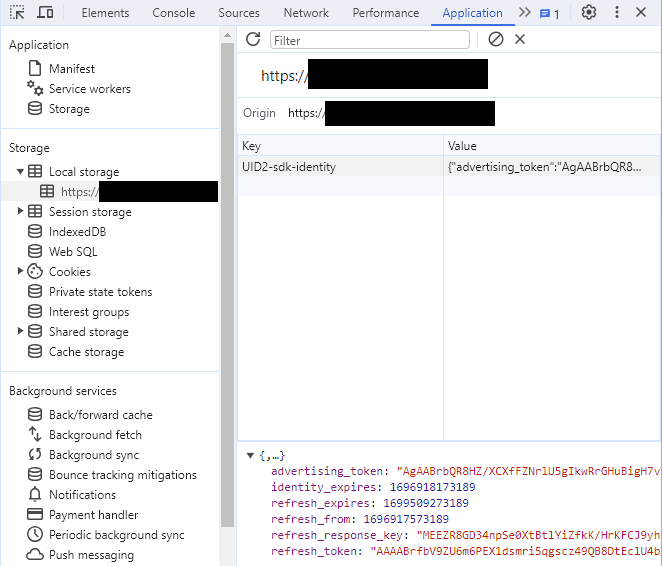
After calling one of the methods listed in Configure the SDK for JavaScript successfully, an identity is generated and stored in local storage, under the key UID2-sdk-identity. The SDK refreshes the UID2 token periodically.
The format of the object stored in local storage could change without notice. We recommend that you do not read or update the object in local storage directly.
Example integration code and when to pass DII to the UID2 SDK
If you're a publisher and this is the first page load with no identity, to start the token generation call you'll need to call one of the setIdentity methods with DII. Once an identity is generated, the advertising token (UID2 token) that you would send to the bidstream will be available by waiting for the IdentityUpdated event from the SDK. For an example, see how the value for advertising_token_to_use is set in the following code snippet.
In some cases, the user's DII is not available on page load, and getting the DII has some associated cost. For example, an API call might be required to fetch the DII, or the user has to be prompted to provide it.
You can potentially avoid that cost by checking for an existing token that you can use or refresh. To do this, call
__uid2.isLoginRequired which returns a Boolean value. If it returns true, this means that the UID2 SDK cannot create a new advertising token with the existing resource and DII is required to generate a brand new UID2 token.
It is possible that when you provide DII, __uid2.isLoginRequired still returns a false value. This happens if the user has opted out of UID2. The UID2 SDK for JavaScript respects the user's optout and does not generate UID2 tokens, even if you call any of the setIdentity method calls with the same DII again. Optionally, you might want to avoid making such calls repeatedly.
The following code snippet demonstrates how you might integrate with the UID2 SDK for JavaScript for these two scenarios—starting with no token, or reusing/refreshing an existing UID2 token.
<script async src="{{ UID2_JS_SDK_URL }}"></script>

<script>

// UID2 provides these configuration values to the publisher.
const clientSideConfig = {
  subscriptionId: "...",
  serverPublicKey: "...",
};

// Example of a Base64-encoded SHA-256 hash of an email address.
const emailHash = "tMmiiTI7IaAcPpQPFQ65uMVCWH8av9jw4cwf/F5HVRQ=";

// When the UID2 SDK is executed, it looks for these callbacks and invokes them.
window.__uid2 = window.__uid2 || {};
window.__uid2.callbacks = window.__uid2.callbacks || [];
window.__uid2.callbacks.push(async (eventType, payload) => {
  switch (eventType) {
    case "SdkLoaded":
      // The SdkLoaded event occurs just once.
      __uid2.init({});
      break;

    case "InitCompleted":
      // The InitCompleted event occurs just once.
      //
      // If there is a valid UID2 token, it is in payload.identity.
      if (payload?.identity) {
        //
        // payload looks like this:
        // {
        //   "identity": {
        //     "advertising_token": "A4A...MqA",
        //     "refresh_token": "A3A...pdg==",
        //     "identity_expires": 1692257038260,
        //     "refresh_expires": 1692339838260,
        //     "refresh_from": 1692254338260
        //     "refresh_response_key": "z0v...zL0="
        //   }
        // }
        var advertising_token_to_use = payload.identity.advertising_token;
      } else {
         if (__uid2.isLoginRequired()) {
            // Call one of the setIdentityFrom functions to generate a new UID2 token.
            // Add any retry logic around this call as required.
            await __uid2.setIdentityFromEmailHash(
                emailHash,
                clientSideConfig);
          }
          else {
            // there is a token generation API call in flight which triggers a IdentityUpdated event
            // or no token would be generated because one of previous `setIdentity` calls determines the DII has opted out.
          }
      }
      break;

    case "IdentityUpdated":
      // The IdentityUpdated event happens when a UID2 token is generated or refreshed.
      // See previous comment for an example of how the payload looks.
      // It's possible that payload/identity objects could be null for reasons such as the token
      // expired and cannot be refreshed, or the user opted out of UID2.
      // Check that the advertising token exists before using it.
      if (payload?.identity?.advertising_token) {
          var advertising_token_to_use = payload.identity.advertising_token;
      }
      break;
  }
});

</script>
Check that the token was successfully generated
To check that the token was successfully generated, use the browser's developer tools to look for the token in local storage.
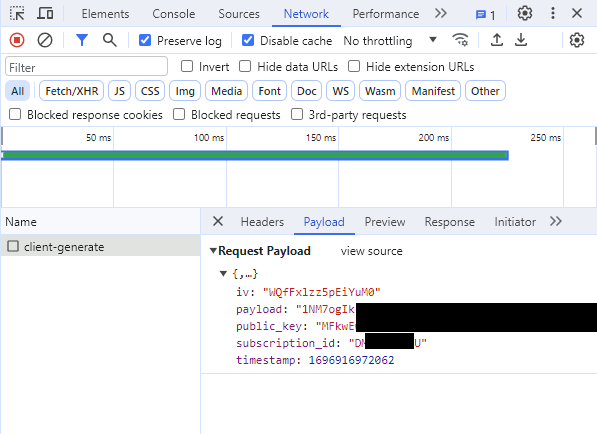
If there was a problem generating the token, find the request in the Network tab. You can find the request by filtering for the string client-generate. Information about why the request failed should be available in the response.
Example code: Hashing and Base64 encoding
The following code example demonstrates how to generate email and phone hashes in JavaScript.
async function hash(value) {
  const hash = await window.crypto.subtle.digest(
    "SHA-256",
    new TextEncoder().encode(value)
  );
  return bytesToBase64(new Uint8Array(hash));
}

function bytesToBase64(bytes) {
  const binString = Array.from(bytes, (x) => String.fromCodePoint(x)).join("");
  return btoa(binString);
}
Sample implementation
A sample implementation is available for client-side integration using the UID2 SDK for JavaScript: